

Your Steam store page is where wishlists are won or lost. For a player to wishlist your game, they must first be convinced it is something they will one day play and enjoy enough to pay money for. Whether or not they believe this is based almost entirely on the information you have provided — and almost all of that comes from your Steam page.
In marketing, the player's journey from first discovering your game to wishlisting it is called a funnel.
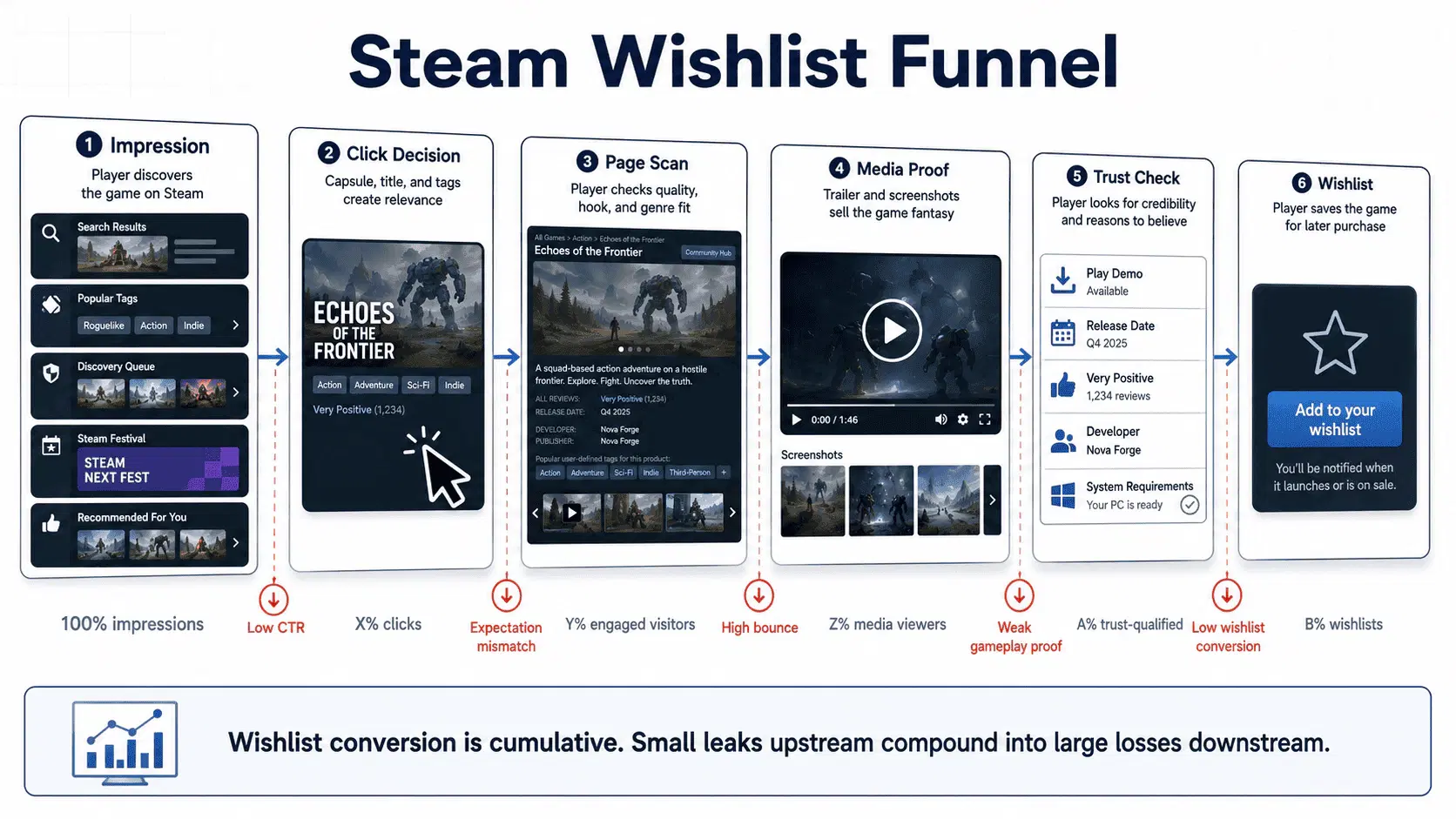
For a complete breakdown of Steam marketing funnels, read our full guide on how to market a Steam game in 2026.
Why optimize your Steam store page?
A well-optimized Steam page converts more of the traffic it gets into wishlists and paying players. Small improvements to each asset add up fast.
Example
A game with 100,000 wishlists converting at 5% will have 5,000 sales.
A game with half as many wishlists — 50,000 — converting at 10% will get the same number of sales.
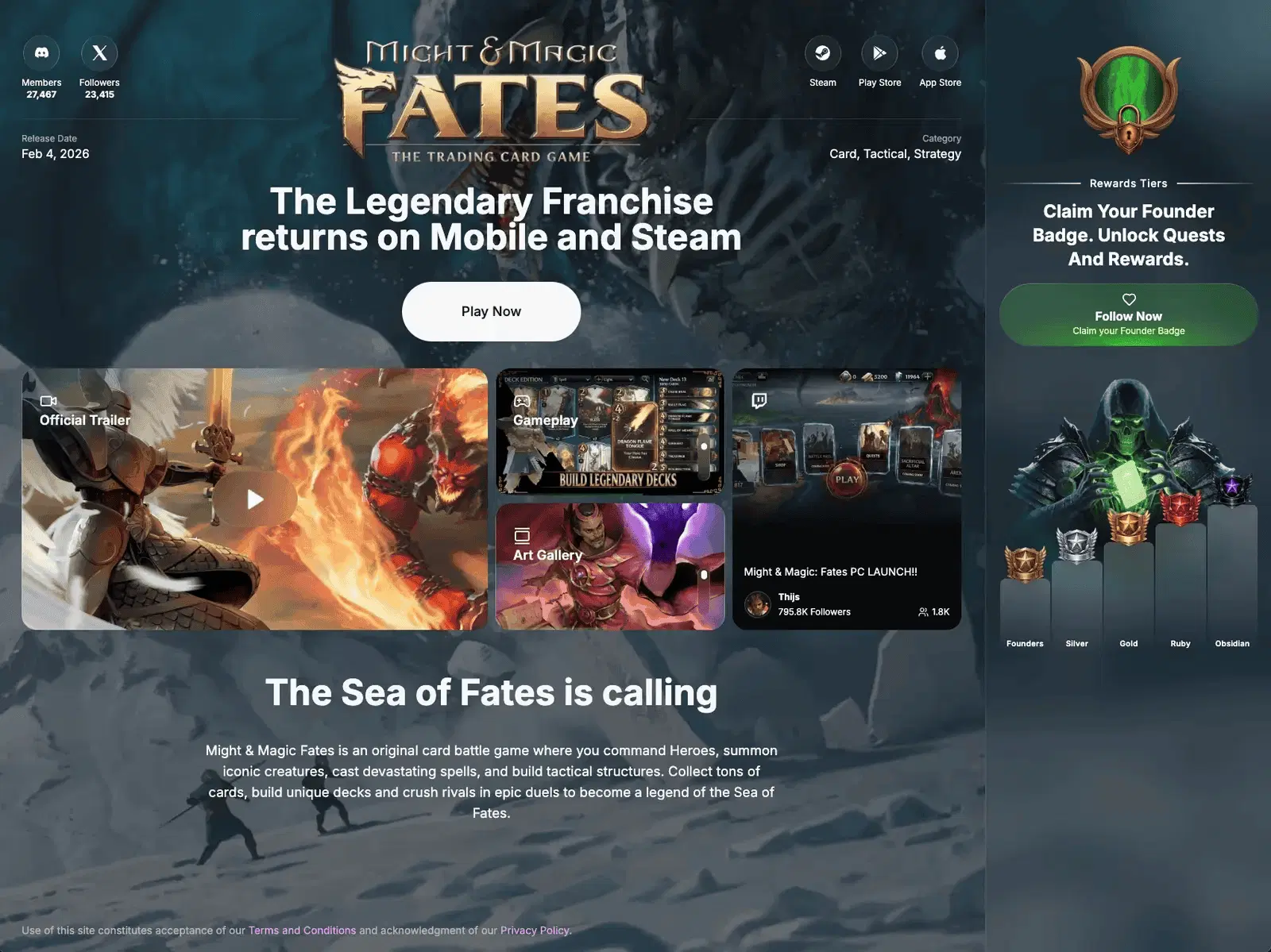
Some of the studios we have worked with have increased conversion by 2.8x on launch day. Based on 35+ billion data points across 800+ games in Immutable's proprietary game CDP.
The goal of your Steam landing page
Every creative asset on your Steam page serves two goals:
| Goal | Explanation |
|---|---|
| Discovery | Your game gets pushed to the right players by the algorithm. |
| Conversion | Players convert at a high percentage at each stage of the funnel, from first seeing your capsule down to clicking the wishlist button. |
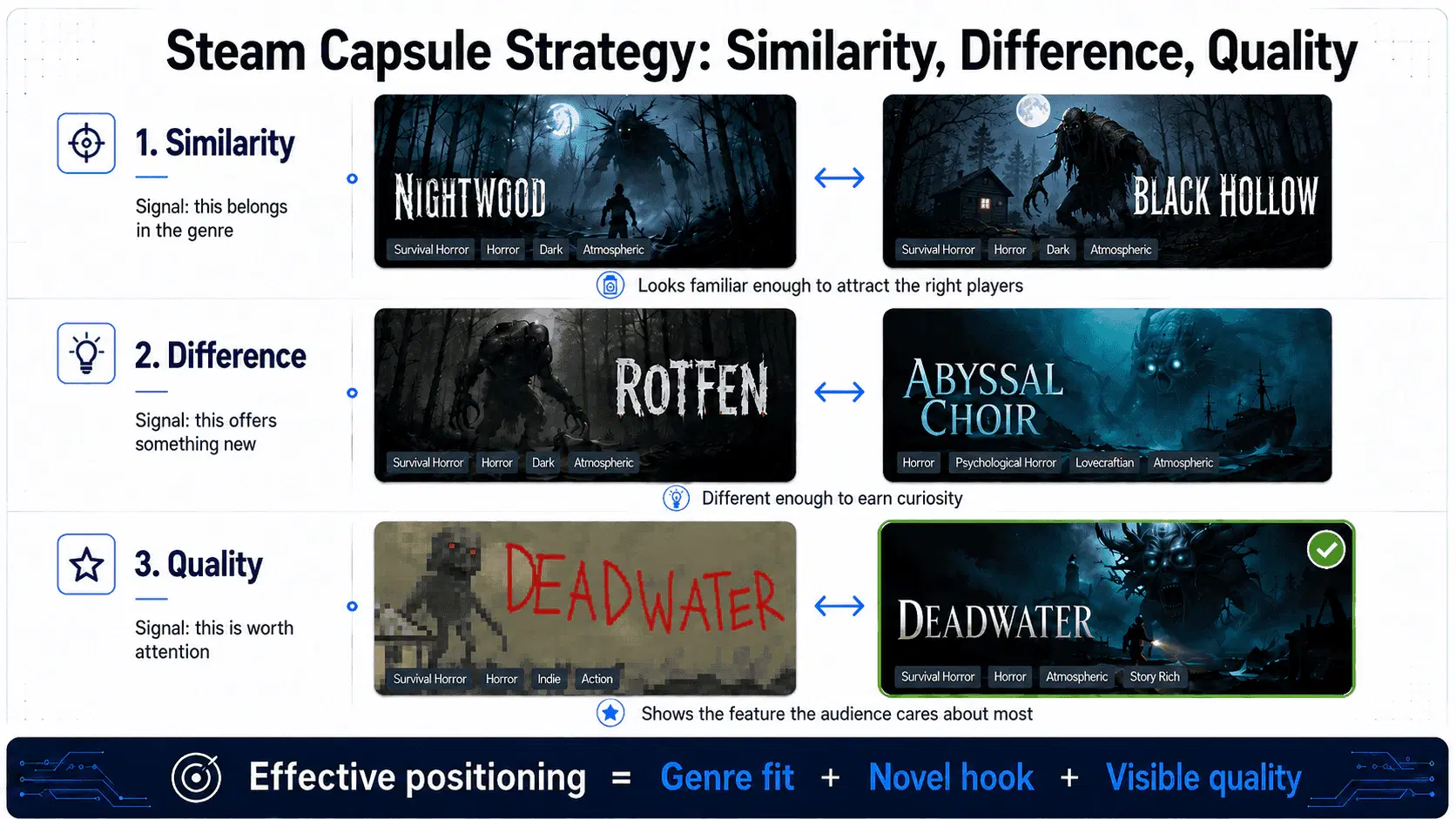
After working with 800+ games, the assets that drive the best discovery and conversion achieve three things:
- Similarity — communicate that your game is the type of game your target audience likes, by resembling comp titles and the other games in your genre.
- Difference — communicate that it is unique enough from the games they have played before that it is worth trying.
- Quality — whatever features matter most to your target audience, ensure your assets communicate a high level of quality in that area.
How to optimize your Steam store page
Steam page optimisation breaks into three layers:
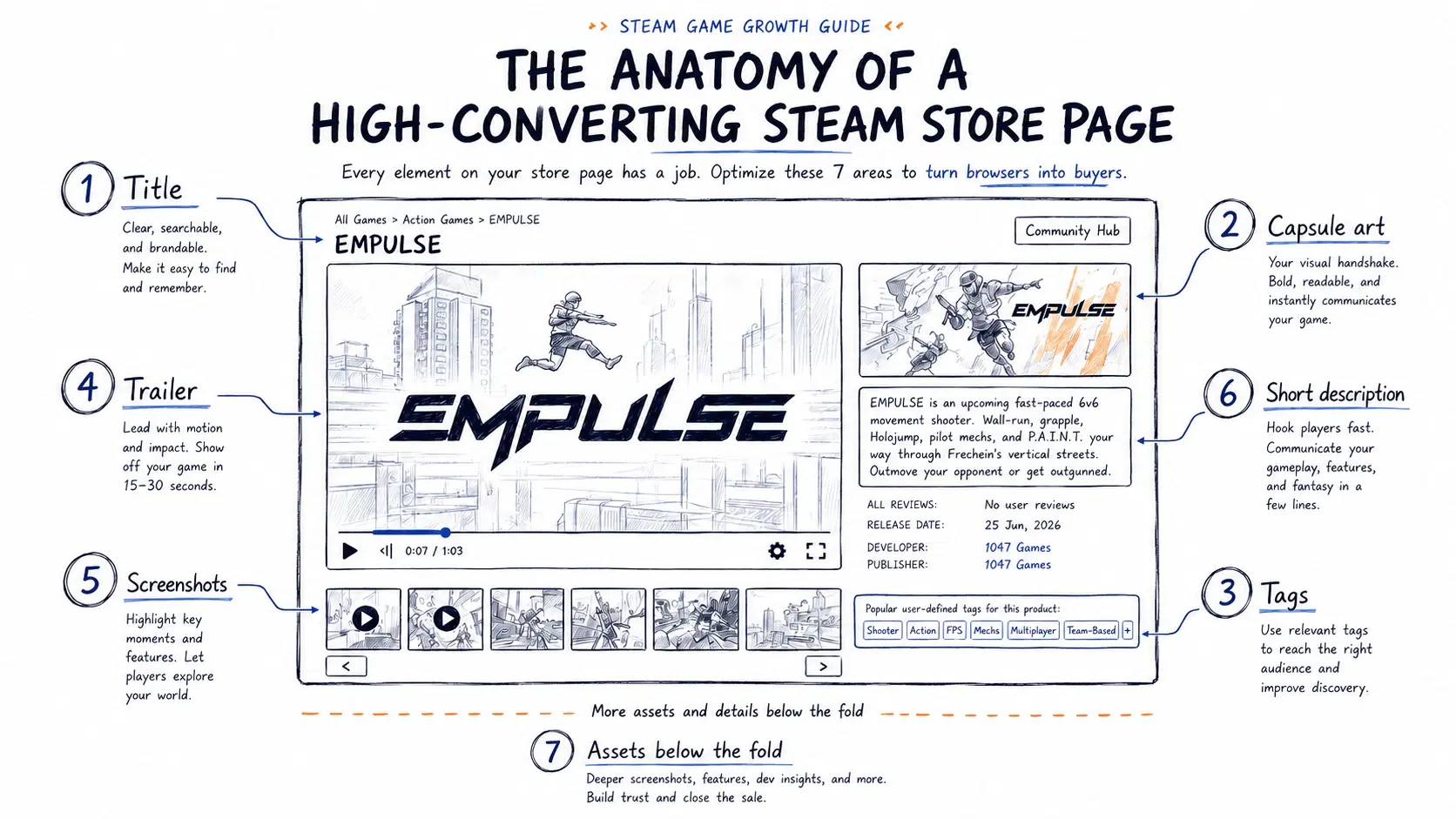
Pre-landing: what a player sees before clicking to your page — capsule art and title. You have no control over context at this stage; you only control the impression.
Above the fold: what appears without scrolling — your trailer, tags, short description, and carousel screenshots.
Below the fold: in-text screenshots and GIFs, your About This Game section, system requirements.
Key concept: Funnel Leverage
David Ogilvy once said: "On the average, five times as many people read the headline as read the body copy. When you have written your headline, you have spent eighty cents out of your dollar."
The earlier a player sees something, the more effect it will have on the funnel's overall success — and the more effort you should put into getting it right.
Pre-landing page assets
Before a player reaches your Steam page, Steam has already decided whether to show your game. Pre-landing impressions happen on surfaces you do not control: search results, genre browsing, the New Releases list, and discovery queues.

Steam Capsule Art: The Highest-Leverage Asset on Your Page
Steam capsule art is the image that represents your game across search results, store pages, recommended sections, and the Steam homepage. It is the first thing a player sees, and it determines whether they click to see anything else. This section covers the essentials; for the full treatment, including all five capsule types and the six dimensions we score them on, see our Steam capsule guide.









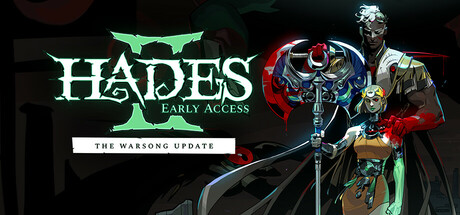















Most players will only see your capsule for a few seconds. If they are not interested, they will never click through to see any of your other assets. To improve your click-through rate, your capsule must achieve three things:
- Similarity: communicate that your game belongs to a genre your target audience already plays, by visually resembling comp titles.
- Difference: signal that it offers something new enough to be worth trying alongside the games they have already played.
- Quality: immediately convey a high level of craft in the dimension your target player cares about most (art style, atmosphere, mechanical complexity).
To achieve this, your Steam capsule art should contain two elements only: your game title and a single key visual. Valve explicitly prohibits including quotes, review scores, or promotional text in capsule art.
Composition: where does the eye go?
A capsule should have one clear visual path. The eye should land on the subject, understand the genre, then read the title. What fails is when the eye bounces between five competing details and never settles.
Good composition usually has fewer elements than the first draft: one hero, one readable logo, one clear background. The most common mistake is beautiful art where every part carries the same visual weight — a dark character on a dark background, a warm title against warm fire, a detailed subject against an equally detailed environment.
Three tests to run before uploading:
- Blur test: blur the capsule slightly. The hero shape and title should still read. If everything dissolves into soft texture, the composition is leaning on detail it cannot deliver at thumbnail scale.

- Grayscale test: strip the color. Your title, subject, and background should sit on clearly different value layers. If it all blurs into one tone, saturation is doing work that contrast should be doing.

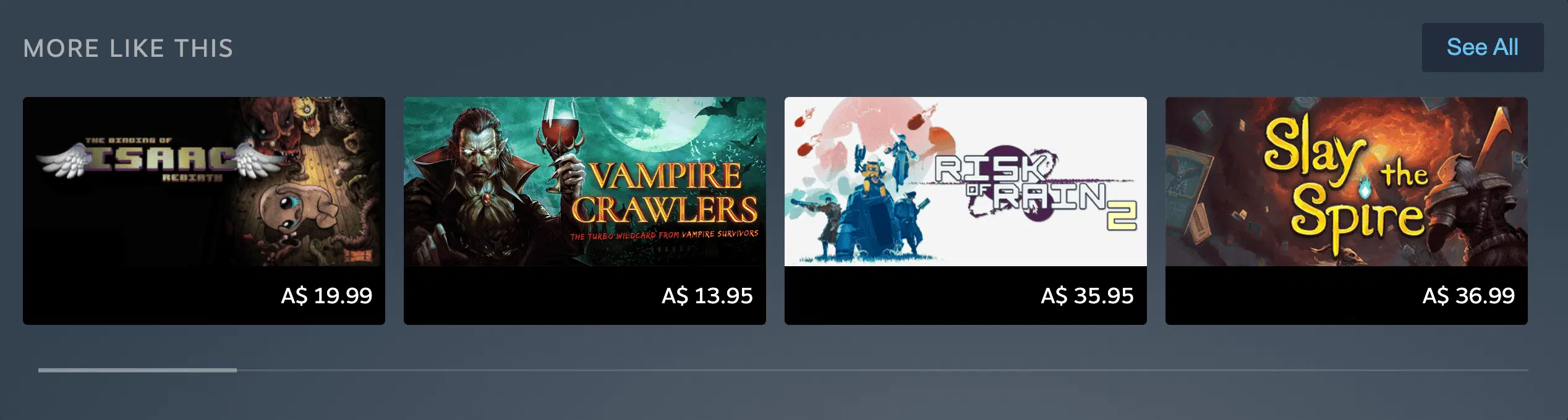
- Competitor grid test: open your top five genre competitors at thumbnail size and put your capsule next to them. If yours disappears into the grid, find the one convention the others share and break it: a different palette, an unusual silhouette, a subject showing the gameplay verb rather than a posed character.
Brand consistency
A capsule also builds memory over time. Studios with consistent visual signatures — the same font treatment, the same accent color, a repeating framing device — become recognisable across the Steam store before a player reads the title. You do not need a mascot. You need one repeating element that makes your capsule identifiable as yours.
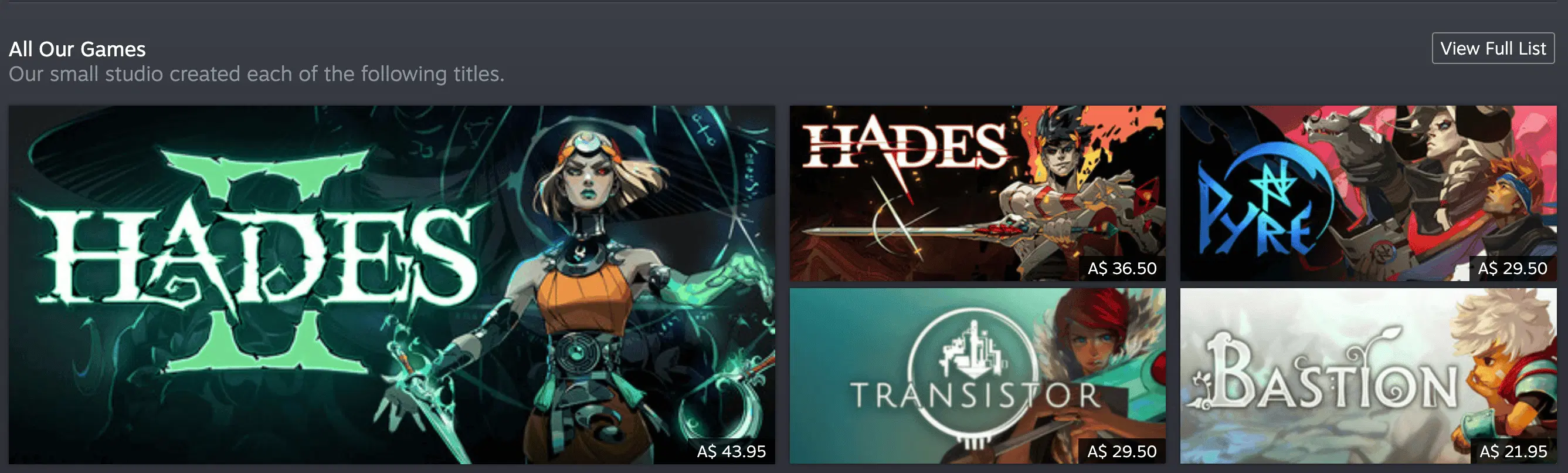
Steam Capsule Sizes
Steam uses multiple capsule formats across different surfaces. All images must be submitted at the upload dimensions specified in Valve's official capsule art guide. Our Steam capsule sizes reference has the same numbers plus templates, rendered sizes, and upload notes:
| Capsule type | Upload size | Where it appears |
|---|---|---|
| Header Capsule | 920 × 430 px | Top of store page, Recommended For You, Daily Deals |
| Small Capsule | 462 × 174 px | Search results, top sellers, new releases lists |
| Main Capsule | 1232 × 706 px | Steam store homepage featured carousel |
| Vertical Capsule | 748 × 896 px | Seasonal sales front page |
| Screenshots | 1920 × 1080 px (min) | Store page, featured sections |
The small capsule (462×174px) is the most punishing constraint. At that size, an intricate scene becomes visual noise. Steam developer data and third-party capsule analysis suggest the average click-through rate for indie game capsules sits below 2%; titles clearing 4% earn meaningfully more visibility in discovery queues and search. The small capsule is where most of that gap opens.
Example: A pixel-art RPG should verify that its capsule art reads clearly at small capsule scale. If the game title requires squinting at full monitor resolution, it will be completely unreadable in search results.
Pro tip
Your capsule art is arguably the most important element of your Steam page. We built a free tool to help you analyze whether yours is ready.
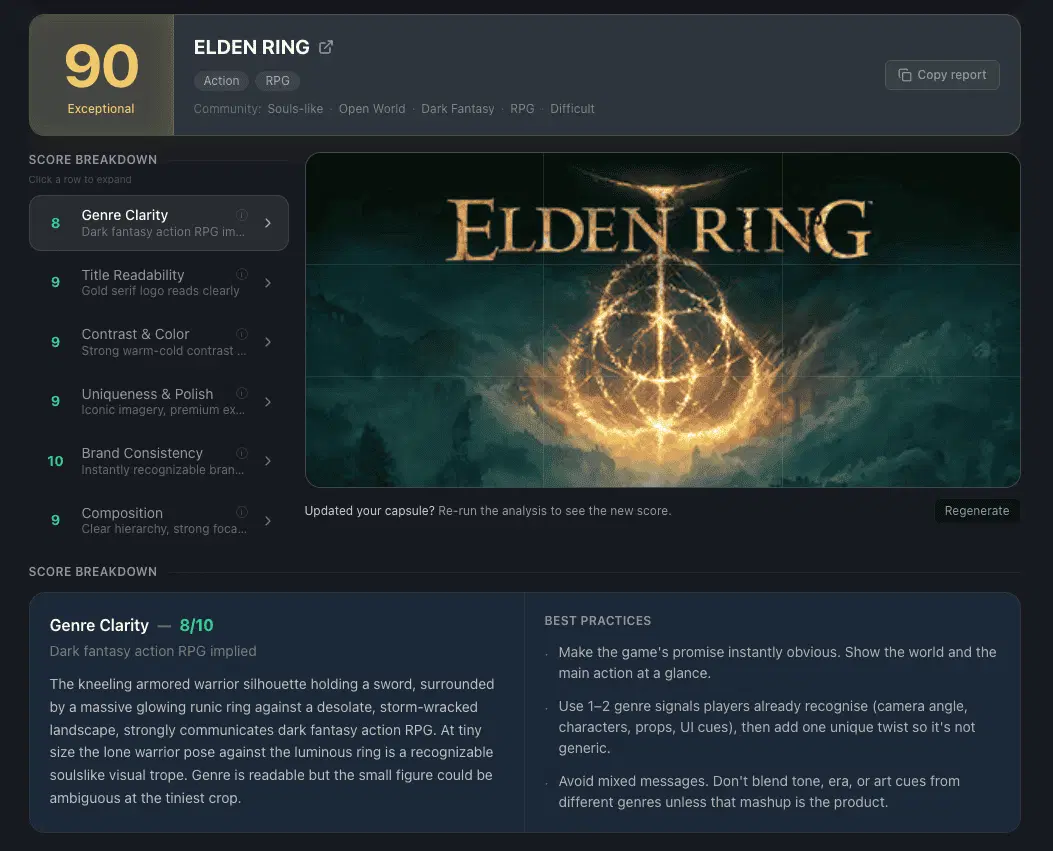
Above the fold assets
Assets "above the fold" include everything immediately visible to a player without scrolling. On a standard monitor at 1080p, this is your trailer, genre tags, short description, and the first two to three carousel screenshots. Most players decide whether to wishlist or leave without scrolling further, which means this section carries the majority of your conversion weight.
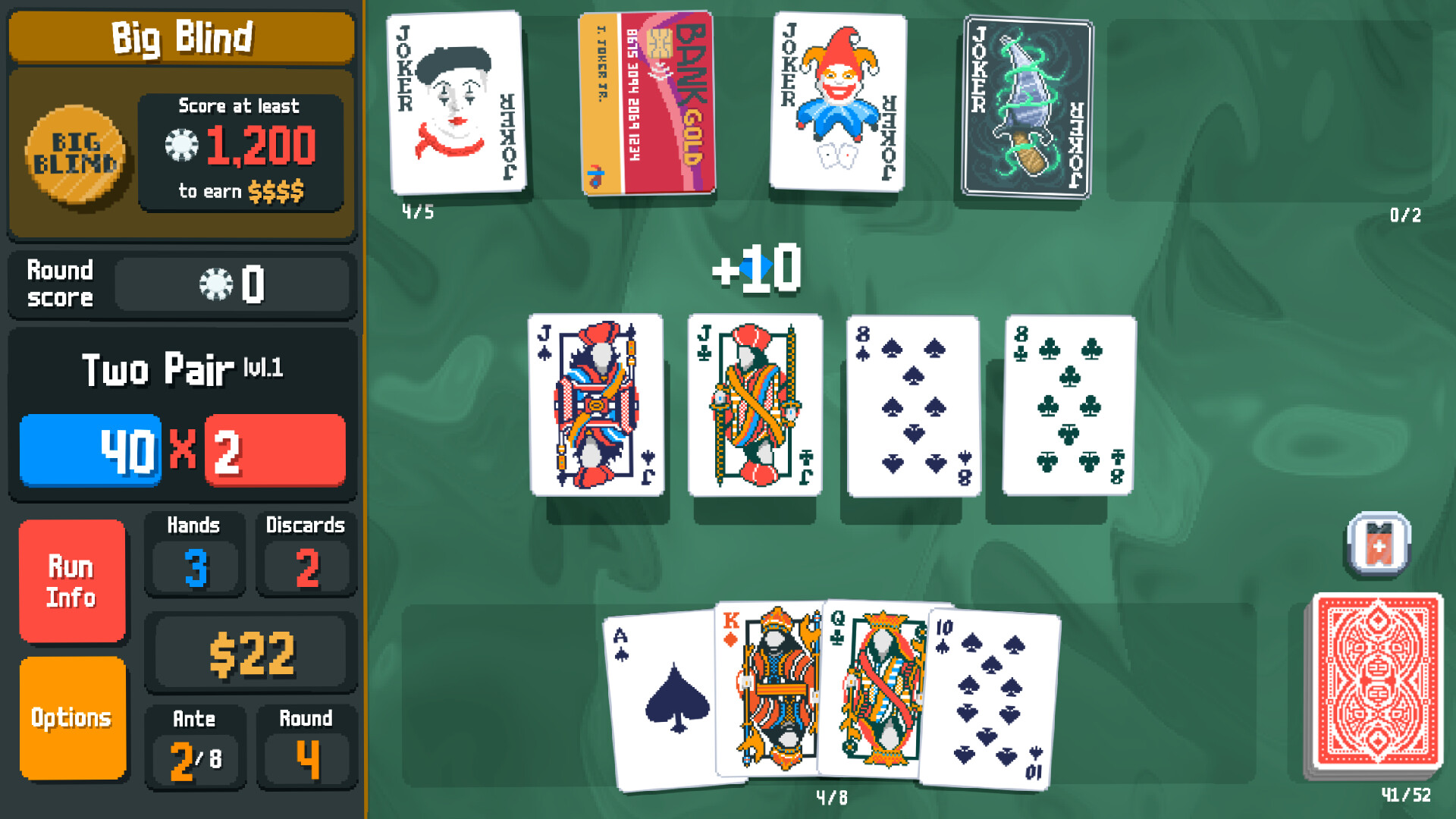
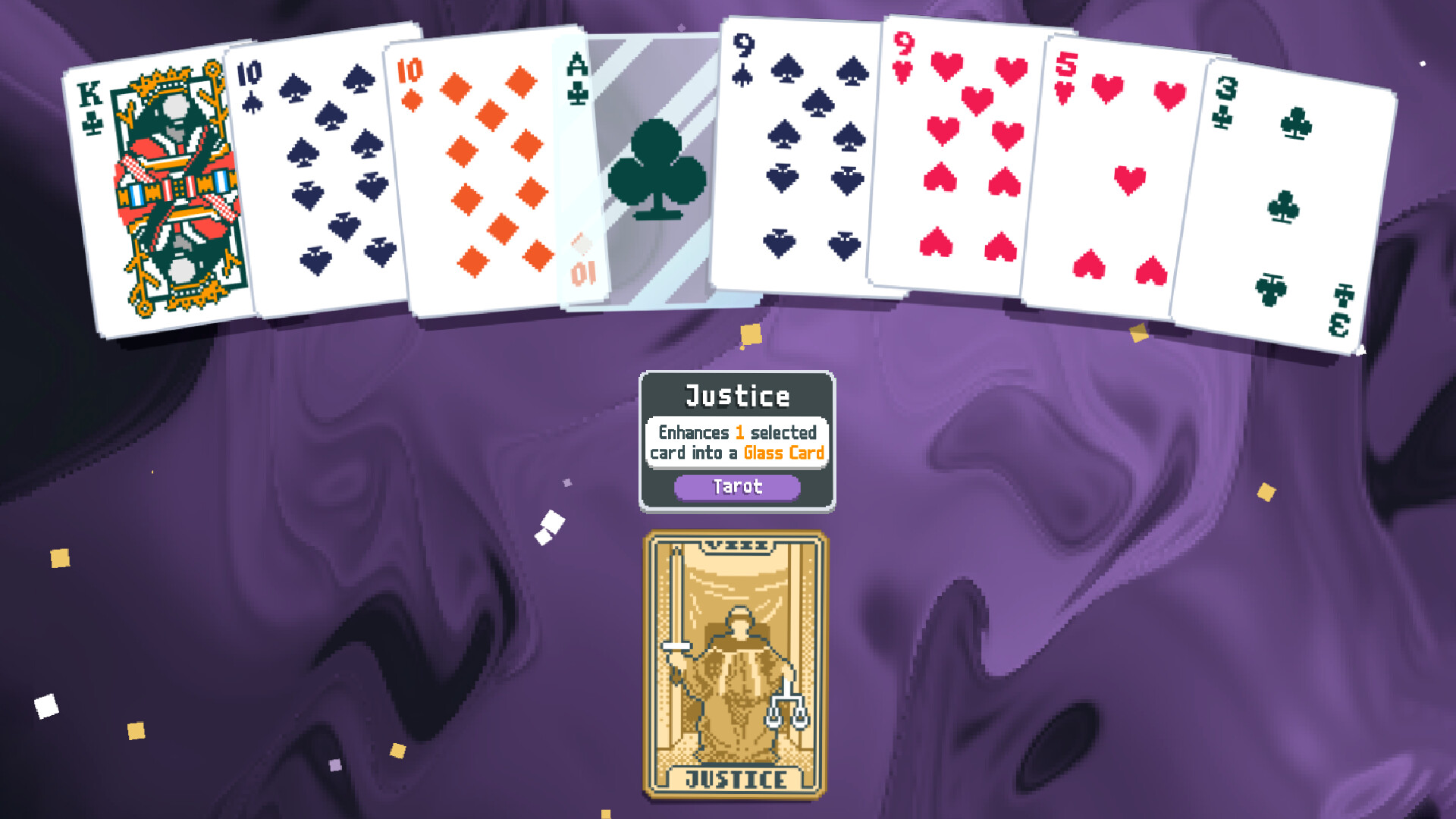
See Balatro's screenshots, trailer, and short description laid out as a real Steam page, with feedback on each.
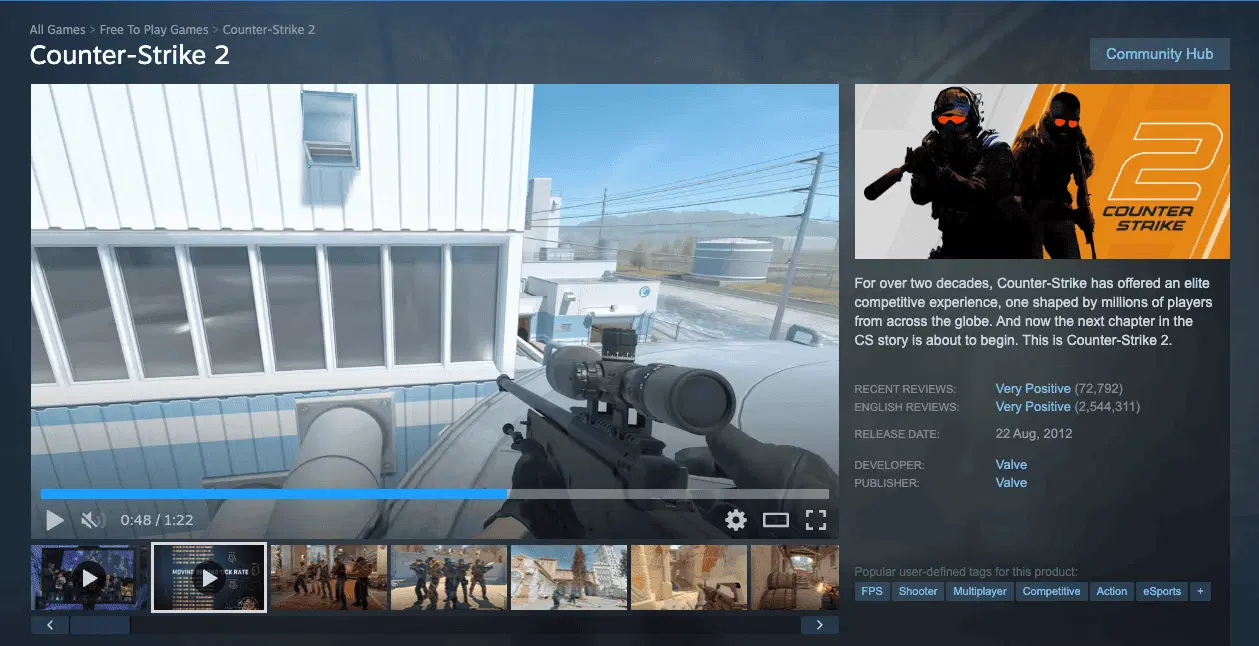
Steam Screenshots Best Practices
Steam screenshots are the static images shown in the media carousel on your store page, giving players a still view of your gameplay, environments, UI, and content variety.
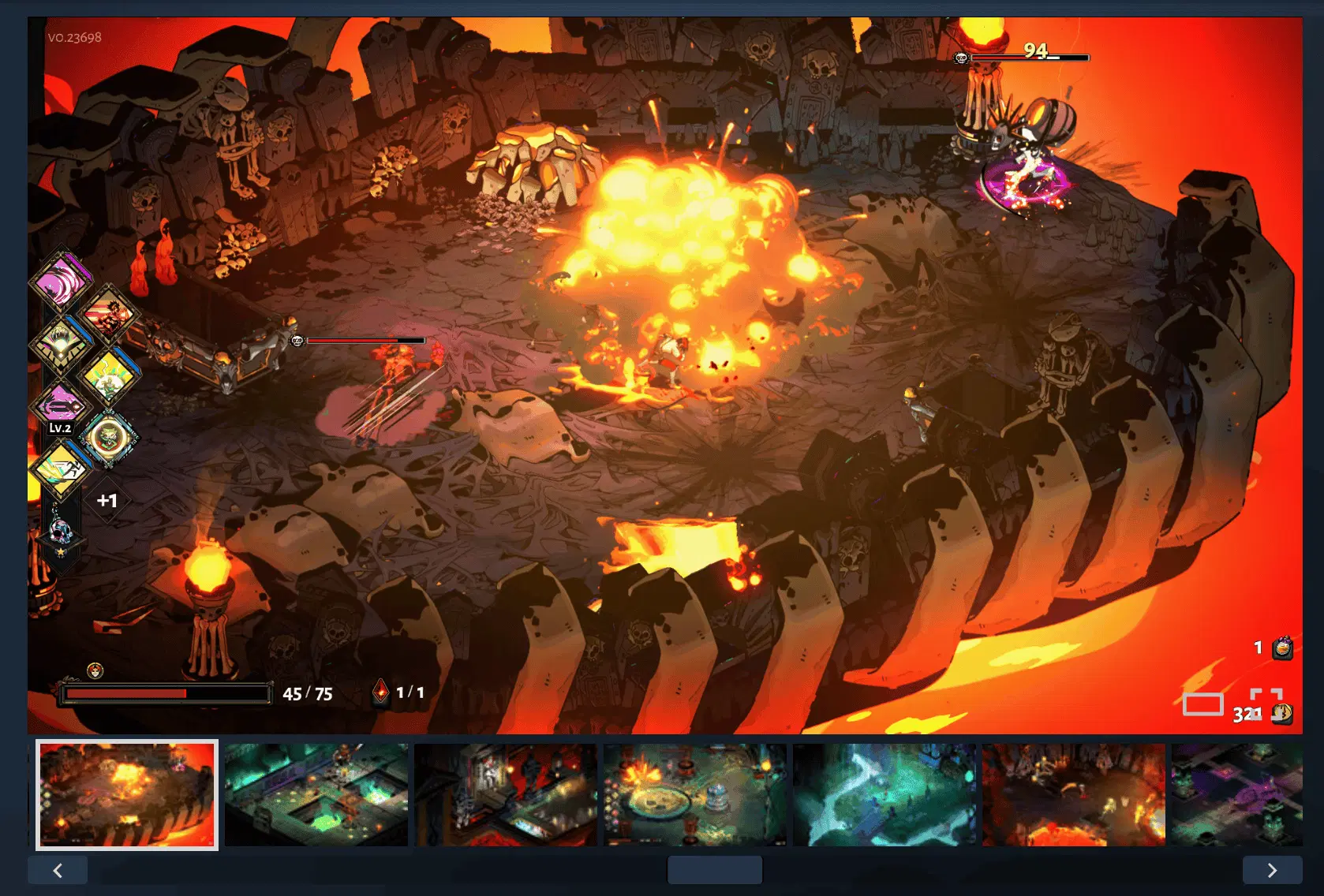
Your screenshots serve a different purpose than your trailer. The trailer sells emotion and energy; screenshots sell depth and diversity. A player scrolling your page wants to answer one question: how much game is here, and does it look like my kind of thing?
Each screenshot should show a distinct game system, a different environment, or a moment the trailer cannot hold at length: a crafting menu, a dialogue system, a late-game area that signals progression depth. Valve requires a minimum of five screenshots, and they must show actual gameplay, not cinematic stills or marketing copy. (Source)
Example: A survival crafting game should spread its screenshots across: overworld exploration, base building, inventory management, a threat moment (night-time attack or boss encounter), and a late-game structure. Five screenshots, five different selling points, no repetition between them.
Steam Short Description vs Long Description: What Goes Where
The short description appears above the fold. It is limited to 300 characters and sits alongside the trailer in the first content a player reads. Use it to answer three questions: what genre is this, what is the core action, and what makes it different. No vague hype, no adjective stacking.
A formula that works: [Genre] where you [core action]. [Differentiator in one specific, falsifiable claim].
For example: "A tactical RPG where your squad's trauma shapes their abilities. Every decision in battle affects who they become."
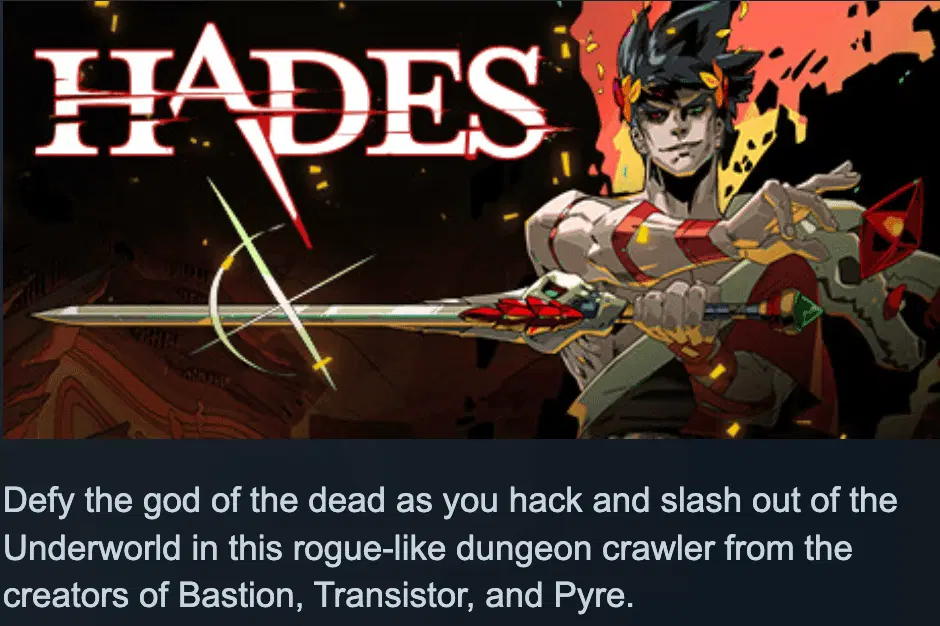
The short description and long description serve different readers. The short description is read by every player who lands on your page — write it for someone who knows nothing about your game. The long description (About This Game, below the fold) is read only by players interested enough to scroll — write it for someone who already understood the short description and wants confirmation of depth and quality before wishlisting.
Free store page audit
Find out exactly where your page is losing wishlists
We'll review your Steam page against our dataset from 800+ games, and walk you through the highest impact fixes on a 30 minute call
Get my free store page audit★★★★★ Trusted by Ubisoft, Netmarble, and 800+ studios
How to Write Steam Tags
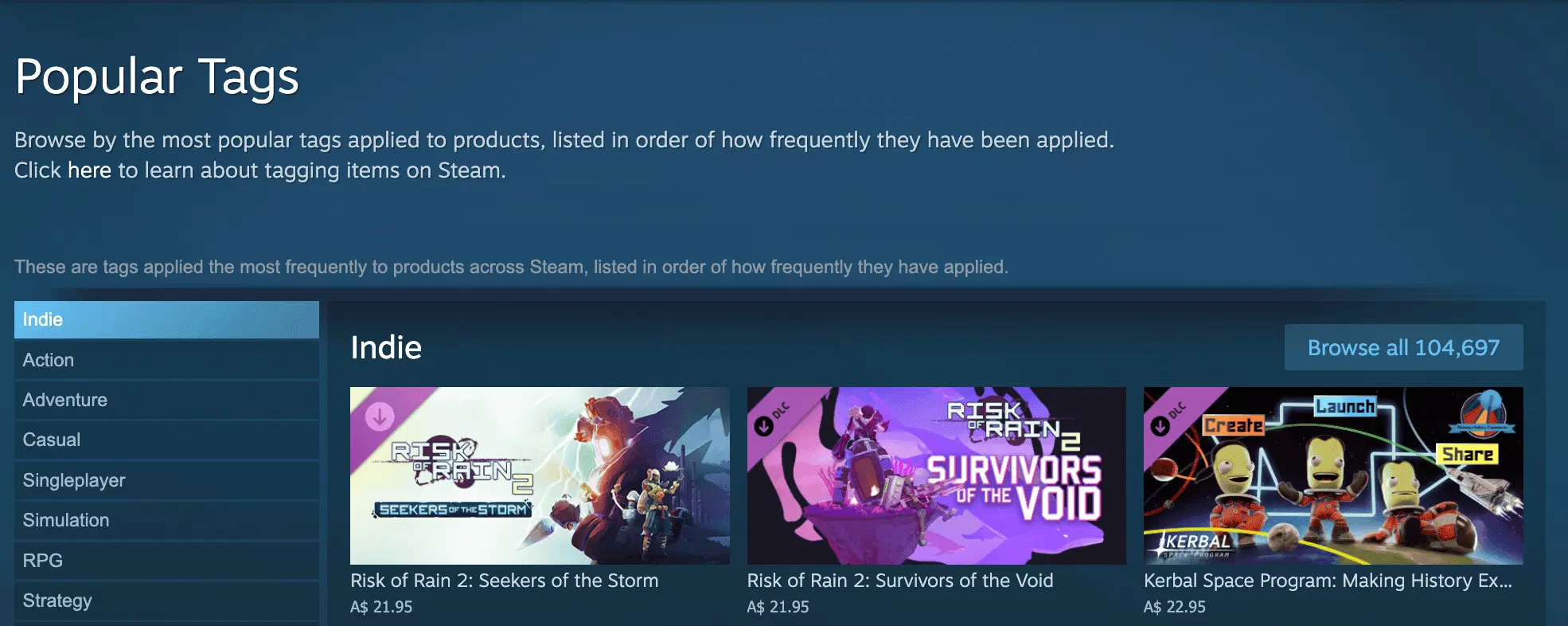
Steam tags are player-facing labels that describe a game's genre, mechanics, themes, and features — such as "Roguelike," "Co-op," "Survival," or "Deckbuilder." Their purpose is to help Steam understand what your game is, match it to relevant players, and place it in the right discovery surfaces: search results, recommendations, and category pages.

Use all 20 Steam tags. Your top 5 receive the most algorithmic weighting and are the first descriptors any player reads about your game. Put your most specific sub-genre and mechanical terms in those slots (Roguelike, Deckbuilder, Base Building) rather than broad labels like Indie or Singleplayer. Unused tag slots reduce discoverability with no offsetting benefit. See the full rules in Valve's tagging documentation.
Tag ordering: top 5, top 15, top 20
Your top 5 appear visibly on your store page. They should paint a clear picture of your game on their own, which is why specific sub-genre and mechanical terms belong here.
Tags 6 through 15 matter because some Steam store filters prioritize the first 15 tags when determining visibility. Make sure everything in this range is sorted by relevance.
Your top 20 determine which tag browsing pages your game appears on and which games Steam marks as "More Like This." For recommendations, Steam looks for overlap across the full top 20. One counter-intuitive point: less common tags carry more influence than common ones. "Action" matters very little because thousands of games share it. "Party-Based RPG" has real weight because few do.
What tags to apply
The Tag Wizard in Steamworks (Store Presence → Edit Store Page → Basic Info → Tags) walks through four categories to build a complete tag profile:
- Genre and sub-genre is the most important category. Your most specific sub-genre belongs in the top 5. Valve's own example: for Super Meat Boy, Action is the super-genre, Platformer is the genre, and Precision Platformer is the sub-genre. Precision Platformer in position 1 is worth ten generic Action tags for discovery purposes.
- Visuals and viewpoint covers dimensions (2D, 2.5D, 3D), camera perspective (First-Person, Isometric, Side-Scroller, Top-Down), and visual style (Pixel Graphics, Realistic, Anime, Stylised, Minimalist).
- Themes and moods covers setting (Sci-Fi, Fantasy, Space, Zombies, Vampires) and atmosphere (Relaxing, Atmospheric, Funny, Dark).
- Features and mechanics covers gameplay systems (Choices Matter, Resource Management, Trading), design properties (Procedural Generation, Physics), and player activities (Mining, Sailing, Hacking).
If you are unsure which tags to apply, open the top 3 to 5 games in your genre and note every tag they share. Apply every applicable overlap to your own game. The Tag Wizard also includes a Suggest Prioritisation button that moves high-information tags to the top and deprioritizes low-information ones like "Indie" — treat it as a starting point and override where needed.
Community tags and maintenance
Players can also add tags to your game, and those weights mix in with what you set over time. Revisit the Tag Wizard periodically to review the current order. If you see tags that misrepresent your game ("Family Friendly" on a horror game, "2D" on a 3D game), remove them directly from your store page. The tag publish process is separate from your store page publish, so updating tags will not affect any pending store changes.
Example: A roguelike deckbuilder with horror theming should lead with: Roguelike, Deckbuilder, Horror, Dark Fantasy, Strategy. Leading instead with Indie, Singleplayer, Atmospheric, Dark, Card Game describes half the games on Steam and puts the game in front of no specific audience.
How to Make a Game Trailer
A Steam trailer is the primary video on your store page and the first moving content a player sees after clicking your capsule.
Open your trailer with gameplay. The most common mistake is leading with a cinematic sequence, title card, and logo before showing a single second of actual play. Players arrive on your Steam page to evaluate whether a game is worth wishlisting.
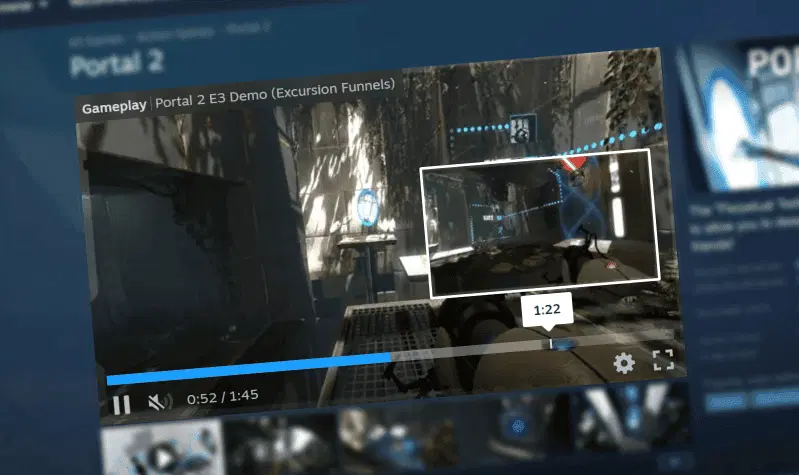
Valve provides documentation on trailers covering technical specifications, but the strategic principle holds regardless: gameplay first, atmosphere second, context last.
On milestone trailers: the standard practice for high-performing games is releasing new trailers at key milestones (Coming Soon, Steam Next Fest, launch week), each with fresh footage that signals the game has grown. Returning visitors see new content; new visitors see a recency signal.
Example: A horror game with strong atmospheric moments should still lead its trailer with a gameplay decision: a tense puzzle solve, a near-miss with the monster, a branching choice, before cutting to atmosphere. The feeling should come from gameplay, not from a cinematic sequence the player had no part in.
Below the fold
Assets "below the fold" include everything a player has to scroll down to see. Players who arrive here are already interested — they processed the above-fold content and wanted more evidence before clicking wishlist. The job of below-the-fold content is confirmation, not persuasion.

Steam Long Description: About This Game
The Steam long description is the About This Game section — a free-format body of text below the fold where you describe your game's world, systems, and key features in full. Structure it to answer: what do you actually do, what is the world, what are the key systems, and what makes it replayable.
The long description supports conversion but does not drive it. The above-fold elements already determined whether the reader got this far.
Example: A co-op horror game with a strong elevator pitch in the short description ("4-player co-op horror where the monster is controlled by AI that learns your tactics") can afford a longer, more atmospheric long description. A game with a vague short description will lose the player before they scroll far enough to read it.
In-text GIFs and statics
In-text GIFs and statics are animations and images embedded inside your About This Game section. They sit below the fold, after the trailer and carousel screenshots have done their job. Your role with these assets is to answer the question the player is asking: does this game have enough depth, and does it feel good to play?
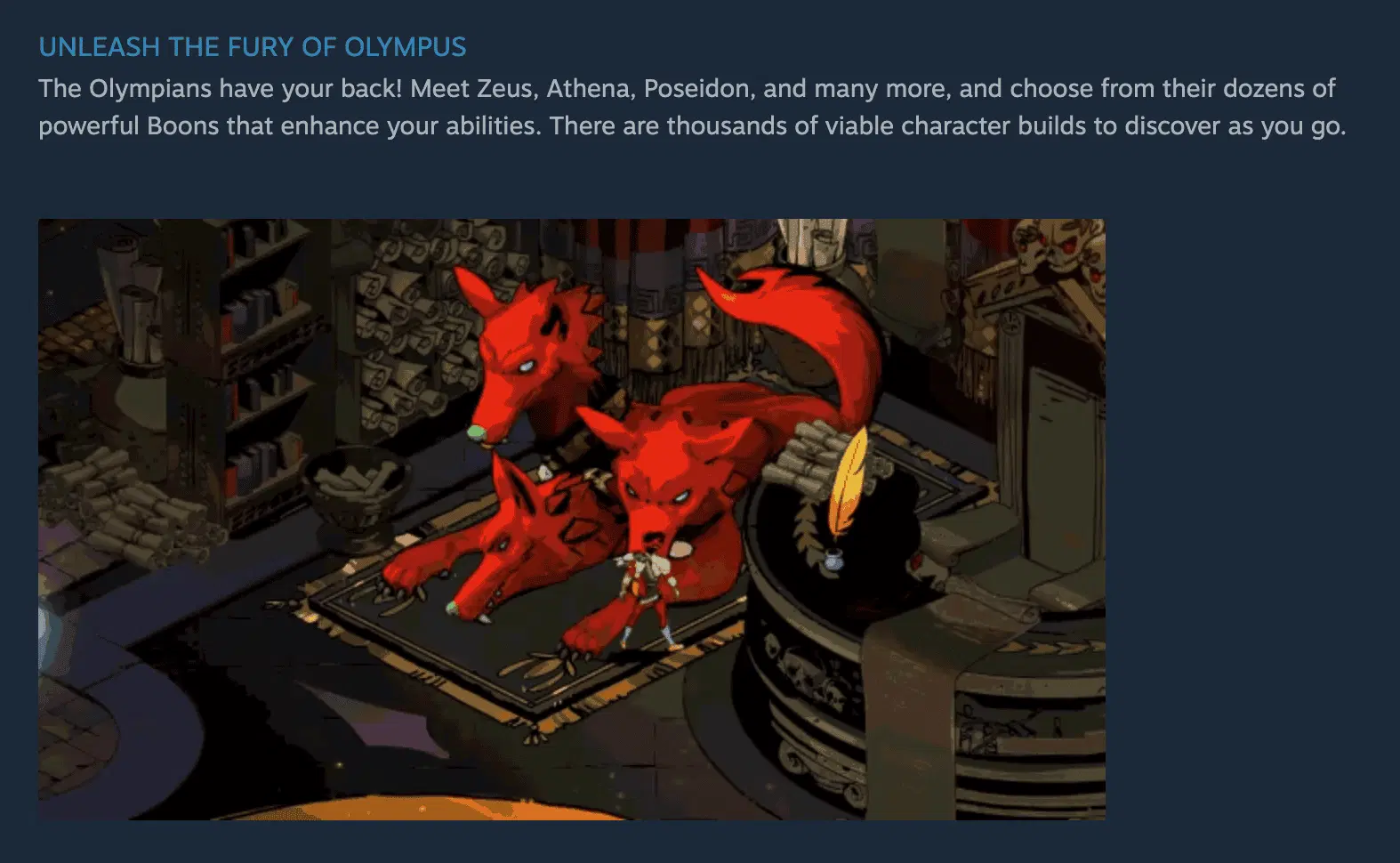
GIFs are the right format here because they convey what a still image cannot: responsiveness, animation quality, and the moment-to-moment feel of play. Think of each one as a three-to-five second distillation of your best trailer moment, placed in the exact part of the page where the most interested players are reading.
Lead with the visuals that tested best. If you have run any messaging tests, reviewed trailer analytics, or tracked which screenshots generated the most engagement, those are the moments to repurpose here.
Technical specs
| Format | Max duration | File size guidance | Where it animates |
|---|---|---|---|
| GIF, WEBP, MP4, WEBM | 12 seconds | Keep total page load under 15 MB; Steam may remove animated images from pages that exceed this | About This Game and Special Announcements only |
| PNG, JPG (statics) | N/A | Standard upload limits | All sections |
Valve recommends uploading images at 1170px wide to maximize quality on high-DPI displays. Animated formats will only play in About This Game and Special Announcements — they will not animate in screenshot carousels or capsule art.
Make the first frame count. GIFs take time to load, and a player scrolling quickly will see the first frame before the animation plays. If that frame is a character standing idle or a black screen, the GIF reads as a static and most players will scroll past before it loads. Start mid-action.
How many to include: two to three GIFs is the right range for most games. Each should show something not already visible in your carousel screenshots. Repeating the same footage that already appears above the fold signals to the player that the page is light on content — which is the conversion problem these assets are supposed to fix.
Example: A colony management game should use a GIF showing a colonist responding to a player command in real time (communicates feel and responsiveness) paired with a static of the late-game colony at scale (communicates depth and replayability). The GIF sells the moment; the static sells the iceberg beneath it.
Steam Community Hub Setup
The Steam Community Hub is the section of your game's presence that includes discussions, user reviews, screenshots, and guides. You do not need to actively curate it at launch, but you do need to configure the basics before your Coming Soon page goes public.
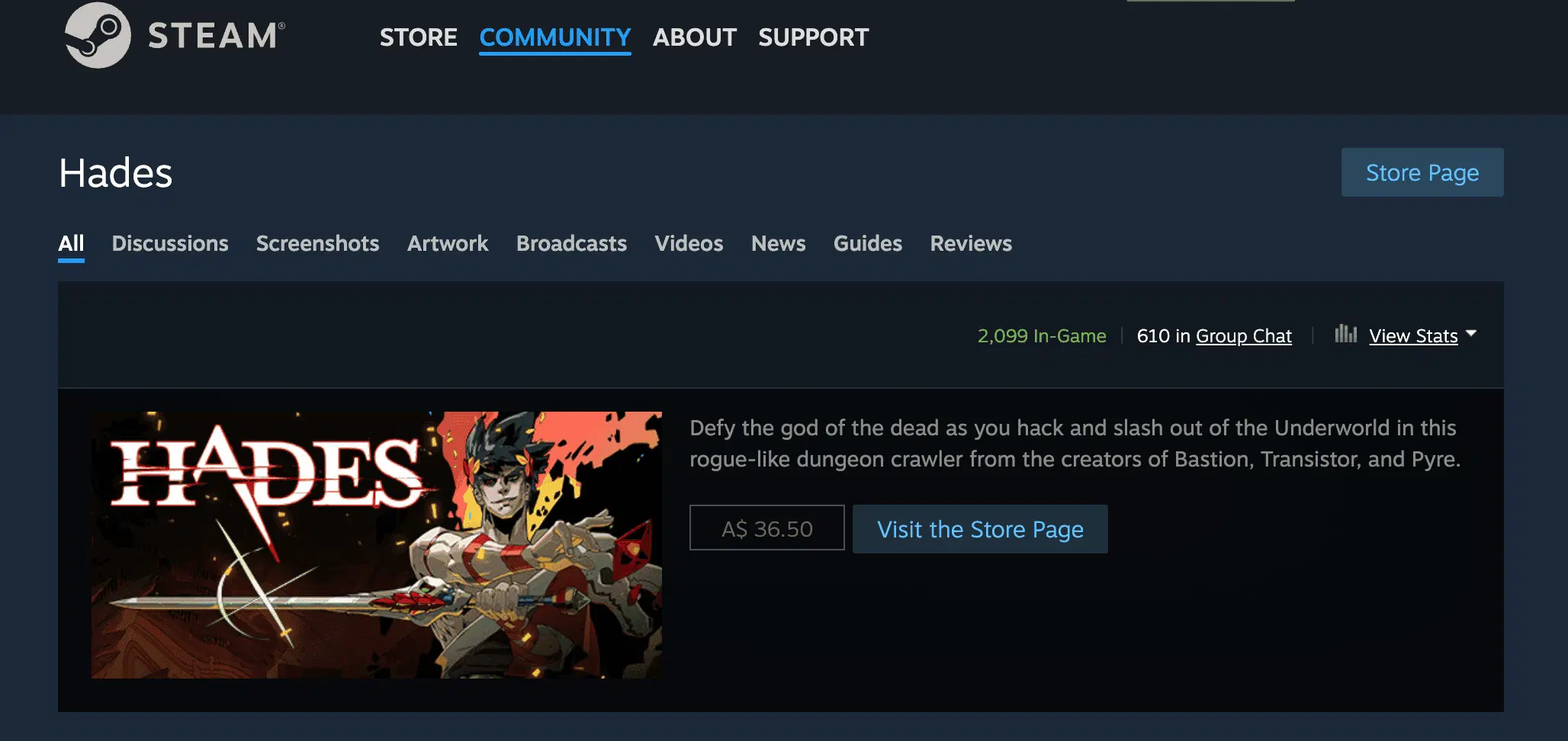
The most important setup step is enabling discussions before launch. Players will ask questions during the Coming Soon phase (release dates, features, system requirements), and unanswered questions in a public forum are a conversion negative. Moderate the hub, or designate someone to monitor it during the week of launch.
Community guides and FAQs written by your team (or by engaged early testers) improve the perception of an active community around the game, which is a visible conversion signal for players who are on the fence.
What Is a Press Kit for a Game?
A press kit is a package of assets and information prepared for journalists, streamers, and content creators who want to cover your game. It does not live on Steam — typically it lives on your website or a publicly accessible folder — but it directly supports your Steam page performance by enabling the coverage that drives traffic to it.
A standard indie game press kit contains:
- High-resolution capsule art and logo (with transparent background)
- At minimum 10 high-resolution screenshots (1920×1080 or larger, gameplay only)
- One or more trailers downloadable at full quality
- A short factsheet: game title, studio name, genre, platform, release date, price, contact
- A longer description (200–400 words) covering premise, core mechanics, and differentiators
- Links to your Steam page and social channels
If a journalist has to email you for a logo file, they will often not bother. Build the press kit before your Coming Soon page goes live, not after you have already started promoting.
A press kit gets your assets in front of creators, but it doesn't tell you which ones to reach out to or how to measure whether the coverage actually moved wishlists. For that, see our guide on game influencer marketing.
Example: A solo developer releasing a metroidvania should have a press kit ready the day their Steam Coming Soon page goes live. The page will generate organic interest from players who wishlist and share. If that interest reaches a content creator who cannot find assets easily, the coverage opportunity is lost.
Landing page tests to increase conversion
Once your Steam store page is set up, the next step is testing your assets to see what is working. Use the scientific method: form a hypothesis about what will improve conversion, update the asset, then analyze performance in Steam's Store & Steam Platform Traffic Breakdown page. Iterate and repeat.
- Form a hypothesis about what attribute of a landing page asset will improve conversion
- Update the asset in a way designed to prove or disprove that hypothesis
- Analyze performance in Steamworks under Store & Steam Platform Traffic Breakdown
- Iterate the asset and repeat
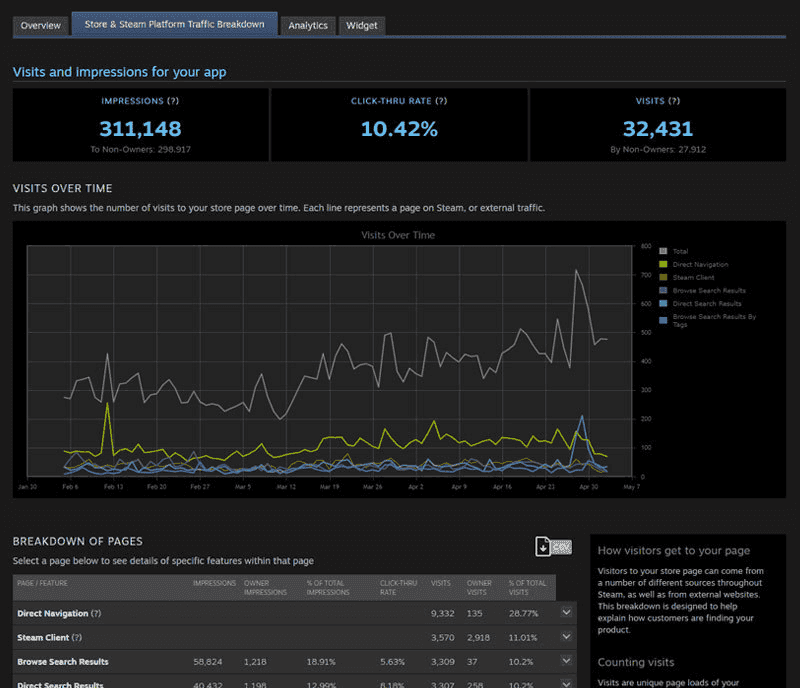
For more detail on Steam landing page testing and the full marketing picture, see our complete guide on how to market a Steam game.
Free store page audit
Find out exactly where your page is losing wishlists
We'll review your Steam page against our dataset from 800+ games, and walk you through the highest impact fixes on a 30 minute call
Get my free store page audit★★★★★ Trusted by Ubisoft, Netmarble, and 800+ studios